Office 365 migrations rarely go as cleanly as planned. You start the migration, and within minutes new emails are already arriving, someone updates a calendar event, and a contact record gets changed. By the time the first migration run finishes, the source mailbox has already moved on. If your migration tool only captures what existed at the start, you’re already behind.
That’s the problem delta migration solves, and it’s the reason most experienced IT admins won’t run an Office 365 migration without it.
In this article, we’ll walk through what delta migration is, how it actually works under the hood, why it’s essential for keeping migrations downtime-free, and how EdbMails Office 365 Migration handles it so you don’t have to manage it manually.
What is Delta Migration in Office 365?
Delta migration — you’ll also hear it called incremental migration — means your tool only moves items that are new or have changed since the last run, rather than starting from zero every time.
The first run does the heavy lifting. It migrates everything: emails, calendars, contacts, tasks, notes, the full folder structure. From that point on, each subsequent run looks at what’s shifted since the previous one and migrates only those items. Anything already transferred gets skipped.
This matters because users don’t pause their work during a migration. Emails keep flowing, meetings get moved around, contacts get updated. Without incremental sync, everything that happens after that first run simply never makes it to the destination — and you might not find out until users start raising support tickets.
How Incremental Migration Actually Works
After EdbMails completes the initial full run, it saves encrypted migration references on your local machine. These don’t hold any mailbox content — they’re just a record of what’s already been migrated.
On every run after that, EdbMails compares the current state of the source mailbox against those saved references. Anything new or updated since the last run gets picked up and transferred. Everything else is left alone.
The result is a target mailbox that stays clean and current without any extra work on your part. No duplicates accumulate, nothing gets missed, and you’re not burning bandwidth pushing the same emails across repeatedly. Each run captures emails, calendars, contacts, tasks, notes, journals, and folder structure — with all original properties preserved exactly as they appeared on the source.
→ Learn how to migrate everything from Office 365 mailboxes
Why Delta Migration is Central to Zero Downtime
Zero downtime doesn’t mean the migration wraps up instantly. It means users keep working without any disruption from start to finish. Delta migration is what makes that possible.
Users don’t notice a thing. Incremental sync runs quietly in the background, picking up only what’s new or changed. Users can keep sending and receiving email on the source server without any impact on their day. From where they’re sitting, nothing has changed.
The target mailbox stays in sync. Each delta run keeps the destination closely aligned with the source. By the time you’re ready to cut over, the gap between the two is usually just a few hours of recent activity — not days of catching up.
The final cutover is faster and less stressful. Most of the data is already on the target server by this point, so the last delta sync before updating MX records finishes quickly. A smaller cutover window means less exposure, less pressure, and fewer things that can go sideways at the worst possible moment.
Delta Migration in Cutover vs Staged Migrations
Delta migration plays a role in both migration strategies — it just looks a little different in each.
In Cutover Migration
Cutover migration migrates all mailboxes at once, typically during a weekend window or after hours. After the initial full migration completes, a delta sync runs right before the final switch to catch anything that arrived while the main migration was running. Once that’s done, MX records are updated and users start working in the new environment.
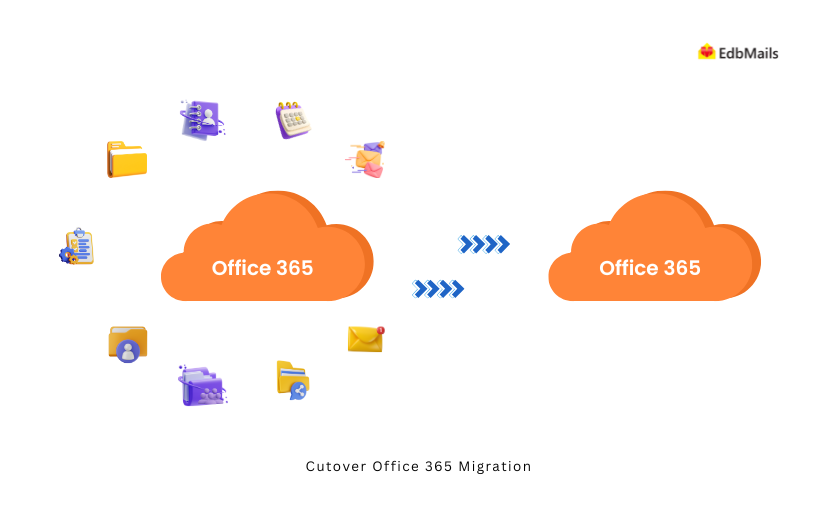
Skip that final incremental pass and you’re risking emails that arrived during the migration window being absent from the destination. That’s exactly the kind of gap that’s easy to overlook and annoying to sort out after the cutover.
In Staged Migration
Staged migration migrates data in phases — certain mailboxes first, then the rest in follow-up rounds. Between each phase, incremental sync runs automatically to keep destination mailboxes current.
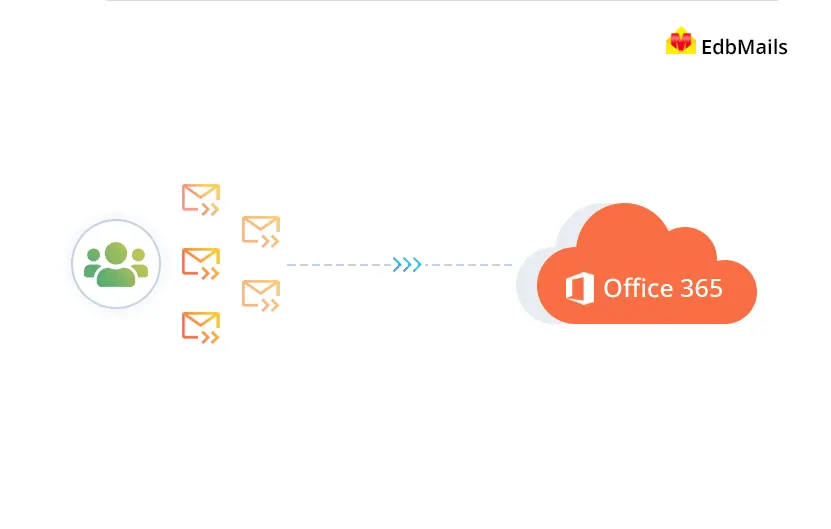
This approach works well for mid-sized to large organizations where finishing everything in one window isn’t practical. Users whose mailboxes are already migrated can get to work in the new environment while the rest of the project continues in the background — and incremental sync keeps everything accurate the whole way through.
Key Benefits of Incremental Migration
No duplicate items on the target server. Every item gets checked against migration records before it’s transferred. If it’s already been migrated, it doesn’t move again. Target mailboxes stay clean without any manual cleanup on your end.
No data loss. New emails, updated calendar entries, changed contacts — anything that arrives or gets modified after the initial run gets picked up in the next incremental pass. Nothing gets left behind.
Faster subsequent runs. After the first full migration, every additional run only touches what’s new or changed. The runs get shorter the further along you are, which means less work piled up for the final cutover.
Lower bandwidth consumption. Only moving new or modified items instead of the full mailbox every time adds up to a meaningful difference — especially when you’re dealing with hundreds of mailboxes.
Nothing extra to set up. After the initial migration, EdbMails automatically switches to incremental mode for all future runs. No settings to update, no commands to run manually.
Additional Incremental Migration Options
The standard incremental sync handles most situations well, but there are times when you need a bit more control. EdbMails gives you three additional options you can reach for when the default behavior doesn’t quite fit.
Compare individual items on the target server. Normally, EdbMails relies on its own migration records to decide what needs to be moved. This option goes a step further — it checks each previously migrated item directly on the target server. Yes, it takes longer. But if you’ve had a run that ended unexpectedly, or you suspect some items came through corrupted or only partially transferred, this gives you a much more thorough verification before you move on.
Migrate without an incremental check. Sometimes the target mailbox gets wiped — whether intentionally or not — and you just need to start clean. This option skips the incremental comparison entirely and runs a full migration from the beginning, as if it’s the very first time. It won’t create duplicates within the same run, so you don’t have to worry about that side of things.
Remove deleted source items from the target. Here’s a scenario that comes up more than you’d expect: items get deleted from the source mailbox after the initial migration, but those deletions never make it to the target. Turn this option on and EdbMails handles it during the next migration cycle — the target reflects the deletions automatically, without you having to go in and clean things up by hand.
Other Features That Support Zero Downtime Migration
Delta migration does a lot of the heavy lifting, but a truly smooth migration depends on several things working together.
- Concurrent mailbox migration runs multiple mailboxes at the same time using multi-threading. This cuts the overall migration window down significantly and means fewer users are stuck waiting in a transitional state between environments.
- Automatic throttling management deals with Microsoft’s server-side rate limits on its own. If the server starts slowing things down, EdbMails pauses, waits it out, and retries — no input needed from you, and no risk of the migration failing or stalling out.
- Pause and resume lets you stop a migration at any point and pick it back up without losing any of the completed progress. Combined with incremental sync, an unexpected interruption doesn’t mean going back to square one.
- Automatic mailbox creation and license assignment mean you don’t need to manually set up destination mailboxes ahead of time. EdbMails creates them and assigns the right licenses automatically.
- Automatic mailbox mapping matches source and destination mailboxes based on display names, email addresses, or custom rules. On a large migration, this saves a significant amount of manual work.
- Detailed migration reports show exactly what was migrated, what was skipped, and what failed — before you make any DNS changes. That kind of visibility matters when you’re about to flip the switch on the most critical step of the process.
- No PowerShell required. Everything runs through a graphical interface. This alone removes a whole category of configuration mistakes that tend to cause silent failures and missing data in migrations that rely on scripts.
When Should You Run the Final Delta Sync?
Timing matters here. The closer your final delta sync is to the actual cutover, the smaller the gap between what’s on the source and what’s on the target when users switch over. Running it within one to two hours of the planned MX record update is generally a solid rule of thumb.
For cutover migrations, this happens right at the end of the migration window, just before DNS changes go live. For staged migrations, run a final incremental pass after each batch, and then once more as a last check before the full switchover.
After MX records are updated and new mail starts routing to the target, it’s worth running one final incremental sync to catch anything that arrived between the last sync and the DNS change. It only takes a few minutes, but it properly closes the loop on the migration rather than leaving a small window unaccounted for.
Conclusion
If you’ve run a migration without incremental sync before, you know how it ends. Missing emails, duplicate items, post-cutover cleanup sessions that drag on longer than the migration itself — these are all signs of a tool that wasn’t built to handle an active mailbox environment.
Delta migration solves that. It keeps the target mailbox current throughout the process, takes the pressure off the final cutover, and gives you real confidence that what ended up on the destination actually reflects what was on the source — including everything that changed while the migration was running.
EdbMails builds incremental migration into every Office 365 migration run by default. You don’t configure it separately, schedule it on your own, or check whether it’s running. It just works — and by the time you’re ready to cut over, the bulk of the migration is already done.
If you’re planning an Office 365 migration, try EdbMails free and see the difference that proper incremental sync makes from the very first run.
See Also:
Office 365 Migration Rollback Plan: What to Do If Something Fails
Top 11 features of EdbMails Office 365 migration tool you might not know
7 Breaking Points Where Legacy Systems Fail — And Microsoft 365 Takes Over