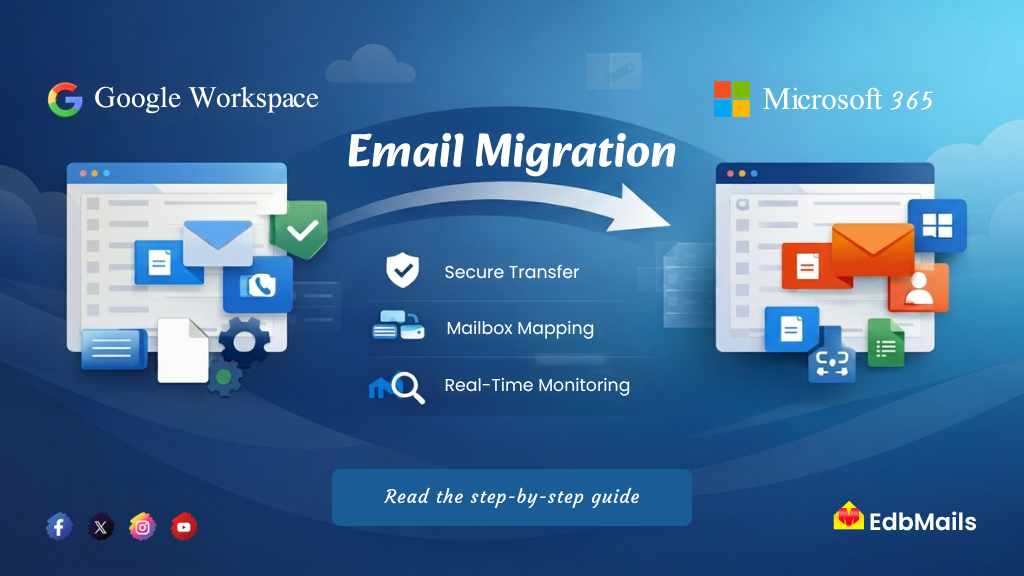
Migrating from Google Workspace to Microsoft 365 is a strategic decision many organizations make to benefit from deeper integration with Microsoft applications, enhanced compliance capabilities, and more streamlined administration. However, email migration must be executed with precision to prevent issues such as data loss, duplication, or service disruption. This guide provides a clear, step-by-step approach to help you carry out the migration smoothly using EdbMails G Suite to Office 365 Migration.
In addition to simplifying the process, using the right migration approach ensures business continuity and minimizes user impact. With proper planning, validation, and execution, organizations can transition their email data securely while maintaining data integrity and accessibility throughout the migration.
Why Proper Planning Matters
Before initiating a migration, it is essential to recognize that email data extends beyond simple messages. A comprehensive migration strategy should ensure the preservation of:
- Emails and attachments
- Contacts and calendars
- Folder structures and labels
- Metadata, including timestamps and read/unread status
Adopting a well-structured approach helps ensure an uninterrupted transition while minimizing disruption to end users.
Prerequisites for Migration
Before starting the migration, make sure your environment is properly prepared to avoid interruptions and ensure a smooth transition.
1. Google Workspace Preparation
Ensure you have administrative access to Google Workspace. Begin by enabling API access, which allows migration tools to securely communicate with your environment. Next, configure domain-wide delegation so that the migration process can access user mailboxes without requiring individual credentials.
You will also need to create a service account and assign the required permissions. This setup is essential for handling bulk mailbox migrations efficiently. For a complete walkthrough, refer to the Google Workspace admin configuration guide available on EdbMails.
2. Microsoft 365 Setup
Set up an active Microsoft 365 tenant before initiating the migration. All user mailboxes should be created and properly licensed in advance to ensure data can be mapped without delays.
Additionally, verify that your admin account has the necessary permissions to manage mailboxes and perform migrations. Proper planning of your tenant environment, including user mapping and domain configuration, plays a key role in maintaining zero downtime during the migration process.
3. Authentication Configuration
Modern authentication must be enabled in Microsoft 365 to ensure secure access. Configure OAuth-based authentication, which allows safe and secure login without relying on legacy protocols.
This setup not only enhances security but also ensures compatibility with modern migration tools. Completing the authentication configuration in advance helps prevent connection issues during the migration.
Before starting the migration process, ensure that all the above prerequisites are properly met.
Step-by-Step Migration Process
Step 1: Download and Install the Tool
Download the application from EdbMails
Install it on your system and launch the application once setup is complete.
Step 2: Select Migration Type
Choose Google Workspace to Microsoft 365 migration as the source and destination configuration.
Step 3: Connect to Google Workspace
- Select service account authentication
- Upload the JSON key file
- Enter the Google Workspace admin email ID
This setup enables secure API-based access to your Google Workspace environment.
Step 4: Load Mailboxes
- Retrieve all user mailboxes from Google Workspace
- Select the required mailboxes for migration
- You can proceed with single or multiple mailbox selections based on your requirement
Step 5: Connect to Microsoft 365
- Sign in using Microsoft 365 admin credentials
- Use OAuth-based authentication for secure connectivity
Step 6: Mailbox Mapping
- Automatically map source and destination mailboxes
- Review and adjust mappings manually if required
This ensures that each user’s data is transferred to the correct destination mailbox.
Step 7: Apply Filters (Optional)
You may refine the migration scope using filters such as:
- Date range
- Specific folders
- Selected items
This helps optimize the migration process by transferring only required data.
Step 8: Start the Migration
- Initiate the migration process
- Monitor real-time progress
- Review logs and detailed reports
For a more detailed explanation, visit the G Suite to Office 365 Migration step-by-step guide
Step 9: Verify Migration
After completion:
- Review mailbox data in Microsoft 365
- Validate emails, folders, contacts, and attachments
- Confirm that no data is missing or duplicated
Step 10: Run Incremental Migration (If Required)
Perform additional migration cycles to transfer:
- Newly received emails
- Updated mailbox items
Common Issues and Troubleshooting
During migration, a few configuration or access-related issues may occur. The most common ones include:
- Authentication errors caused by incorrect or expired login credentials
- Permission misconfigurations in Google Workspace or Microsoft 365
- API access restrictions are preventing a proper data connection
For detailed solutions and step-by-step fixes, refer to the troubleshooting guide
Best Practices for a Smooth Migration
To ensure a successful and stable migration, it is important to follow a structured approach:
- Conduct a pilot migration with a small set of mailboxes before the full migration
- Schedule the migration during off-peak hours to reduce business impact
- Notify users in advance so they are prepared for the transition
- Maintain backup copies of important data for added safety
- Continuously monitor migration progress, performance, and logs
Microsoft also recommends additional performance considerations for mailbox migrations.
Key Advantages of Using EdbMails
Although the migration process is manageable, EdbMails makes several complex tasks much easier, especially for large-scale email migration projects:
- Complete mailbox migration, including emails, contacts, and calendars
- Preserves folder structure and email metadata throughout the migration
- Supports incremental migration to avoid duplicate data in future runs
- Handles bulk mailbox migrations efficiently for large organizations
- Offers selective migration using filters such as date range and folders
- Automatically maps source and destination mailboxes
- Provides real-time migration tracking with detailed reports
- Enables zero downtime to help maintain uninterrupted business operations.
- Easy-to-use interface with no scripting or advanced technical skills required
Conclusion
EdbMails helps organizations migrate from Google Workspace to Microsoft 365 smoothly when the process is carefully planned and executed in a structured way. Following a clear step-by-step approach ensures that mailbox data, including emails and other important items, is transferred securely without loss or disruption.
With proper preparation and controlled execution, administrators can manage the migration confidently while preserving data integrity at every stage. This method also reduces downtime and helps users continue working with minimal interruption during the transition.